
Uninstall a Windows program or update using the CLI
Created: 2020-09-30 02:53:34 | Last modified: 2021-03-14 21:55:17Access: Read | Views: 163 | Rating: N/A | Tags: windows windows server
Instructions of how to uninstall a Windows MSI program by using the Windows CLI / Command prompt. You can also use this to uninstall an update
Here are some instructions of how to uninstall a Windows program by using the command prompt / CLI
1) Open the command prompt
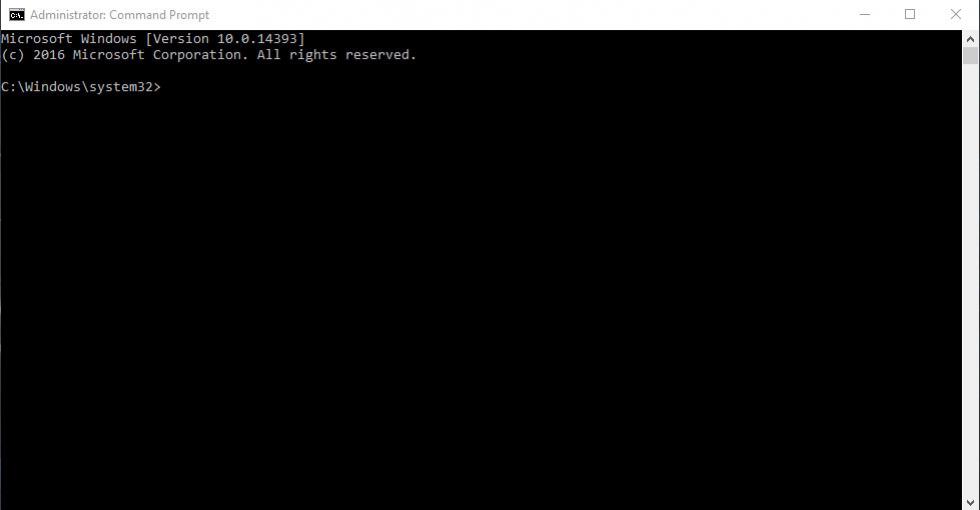
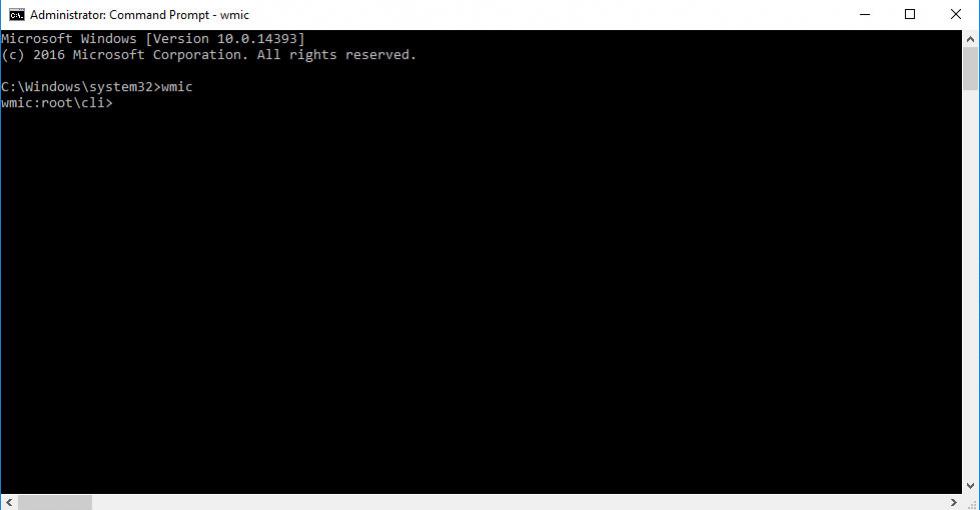
2) Type in the command using the Windows Management Instrumentation Command-line
wmic
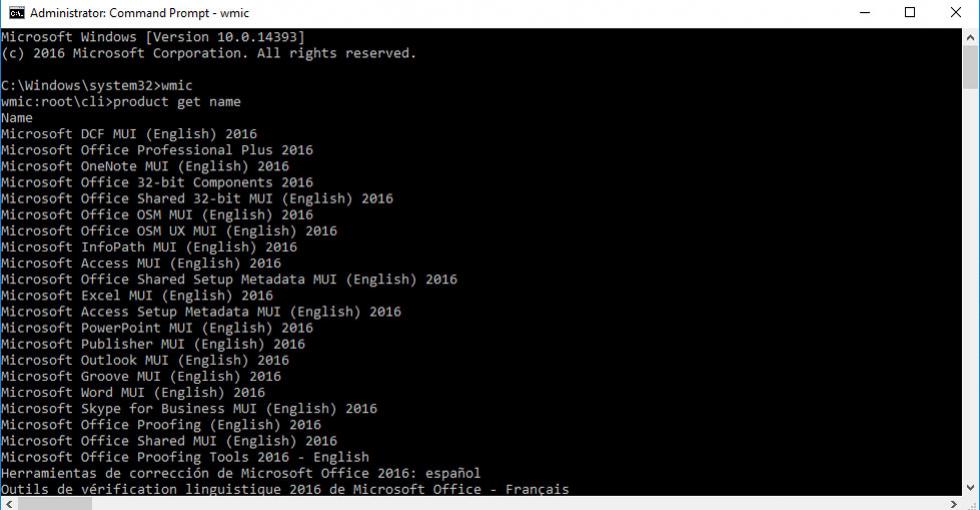
3) Type in the following to get a list of the installed MSI based programs
product get name
4) Type in the following to uninstall the program (where Program Name is the name of the program you wish to uninstall)
product where name="Program Name" call uninstall

# Example
product where name="paint.net" call uninstall
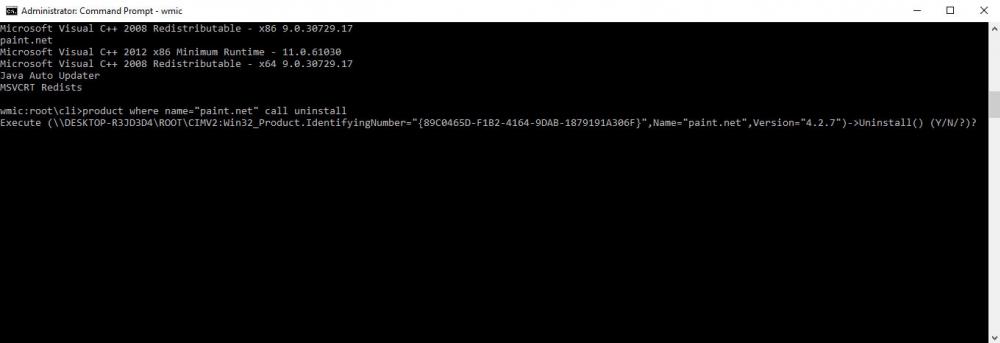
5) Type Y to confirm the program should be uninstalled and press enter
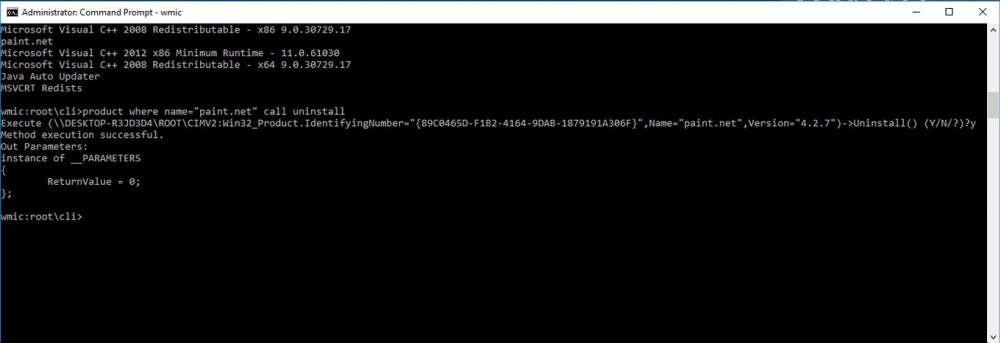
You should now see that the program has been successfully removed from the computer/server. You can exit the WMIC by typing exit and pressing enter.
Here is how to uninstall an update using the CLI/Command Prompt. Change the KB number to the KB you wish to uninstall
wusa /uninstall /kb:5000802