Use these steps when needing to install any of the default Microsoft apps on a computer - this needs to be done by Powershell specifically if Microsoft Store is missing.
Step-by-step guide
- Open an elevated power shell prompt
- Run the relevant line of code below to install each app individually
# This is the base line to install any Microsoft Package. Simply replace <PackageName> with the name of the app you want to install.
# Use * in the package name as a wildcard to allow any characters in that position
# Get-AppxPackage -AllUsers <PackageName> | Foreach {Add-AppxPackage -DisableDevelopmentMode -Register "$($_.InstallLocation)\AppXManifest.xml"}

# Find available package names with the this line.
Get-AppxPackage -AllUsers Microsoft.* | Select Name

# Run this line to install the Calculator app
Get-AppxPackage -AllUsers Microsoft.WindowsCalculator | Foreach {Add-AppxPackage -DisableDevelopmentMode -Register "$($_.InstallLocation)\AppXManifest.xml"}

# Run this line to install the Camera app
Get-AppxPackage -AllUsers Microsoft.WindowsCamera | Foreach {Add-AppxPackage -DisableDevelopmentMode -Register "$($_.InstallLocation)\AppXManifest.xml"}

# Run this line to install Microsoft Photos
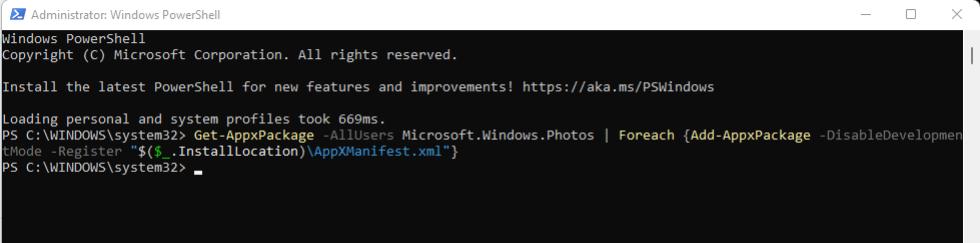
Get-AppxPackage -AllUsers Microsoft.Windows.Photos | Foreach {Add-AppxPackage -DisableDevelopmentMode -Register "$($_.InstallLocation)\AppXManifest.xml"}

# Run this line to install Microsoft Store
Get-AppxPackage -AllUsers Microsoft.WindowsStore | Foreach {Add-AppxPackage -DisableDevelopmentMode -Register "$($_.InstallLocation)\AppXManifest.xml"}

# Run this line to install the Scan app
Get-AppxPackage -AllUsers Microsoft.WindowsScan | Foreach {Add-AppxPackage -DisableDevelopmentMode -Register "$($_.InstallLocation)\AppXManifest.xml"}