Command Prompt or CLI
Here is an example of how to resize a partition inside Windows using the command prompt / CLI. In this example I am wanting to resize the Volume C:\ which is currently 16TB, I have an extra 2TB available so the commands are highlighted as below.
C:\Users\Administrator>diskpart

Microsoft DiskPart version 6.3.9600

Copyright (C) 1999-2013 Microsoft Corporation.
On computer: WN1

DISKPART> list volume

  Volume ###  Ltr  Label        Fs     Type        Size     Status     Info
  ----------  ---  -----------  -----  ----------  -------  ---------  --------
  Volume 0     C                NTFS   Partition     16 TB  Healthy    Boot
  Volume 1         Recovery     NTFS   Partition    300 MB  Healthy    Hidden
  Volume 2                      FAT32  Partition    100 MB  Healthy    System
  Volume 3     D                       Removable    512 KB  Unusable

DISKPART> select volume 0

Volume 0 is the selected volume.

DISKPART> extend

DiskPart successfully extended the volume.

DISKPART> list volume

  Volume ###  Ltr  Label        Fs     Type        Size     Status     Info
  ----------  ---  -----------  -----  ----------  -------  ---------  --------
* Volume 0     C                NTFS   Partition     19 TB  Healthy    Boot
  Volume 1         Recovery     NTFS   Partition    300 MB  Healthy    Hidden
  Volume 2                      FAT32  Partition    100 MB  Healthy    System
  Volume 3     D                       Removable    512 KB  Unusable

DISKPART>
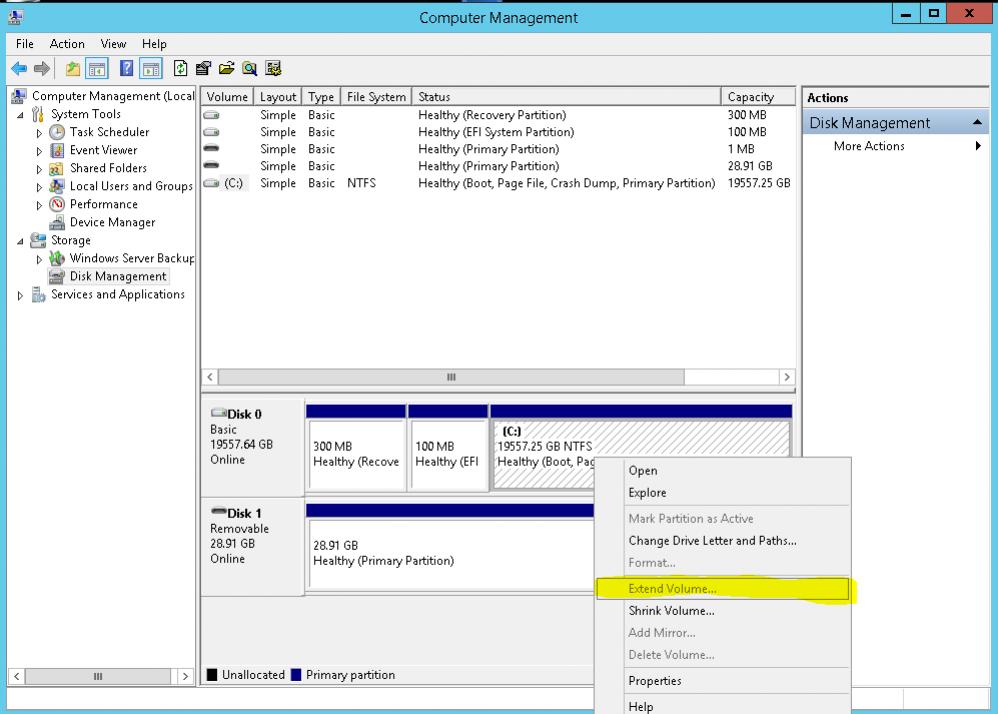
Using the Windows GUI
Open computer management (type 'computer management' into the start menu, select Disk Management, right click on the partition you wish to extend and click extend, work through the prompts and then the partition should be resized.