

Cumulative Update
.First open an elevated command prompt and get current exchange version
Get-Command Exsetup.exe | ForEach {$_.FileVersionInfo}
Download the ISO from and by clicking on the product name e.g. "Exchange Server 2019 CU12 (2022H1)" from here
Mount the ISO (this can be done by right clicking the ISO and selecting mount)
Open an elevated command prompt and run the following command (Where F: is where the ISO is mounted). DomainController is optional
F:\Setup.exe /IAcceptExchangeServerLicenseTerms_DiagnosticDataOFF /Mode:Upgrade /DomainController:dc01.contoso.com
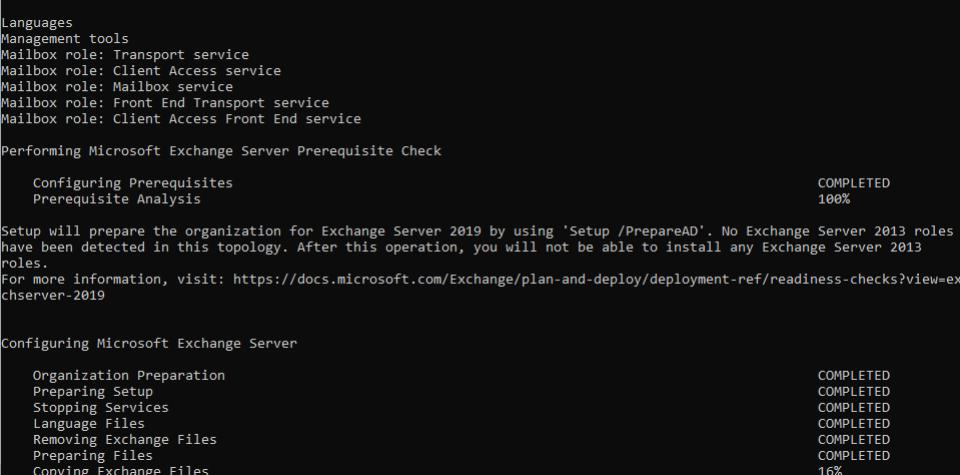
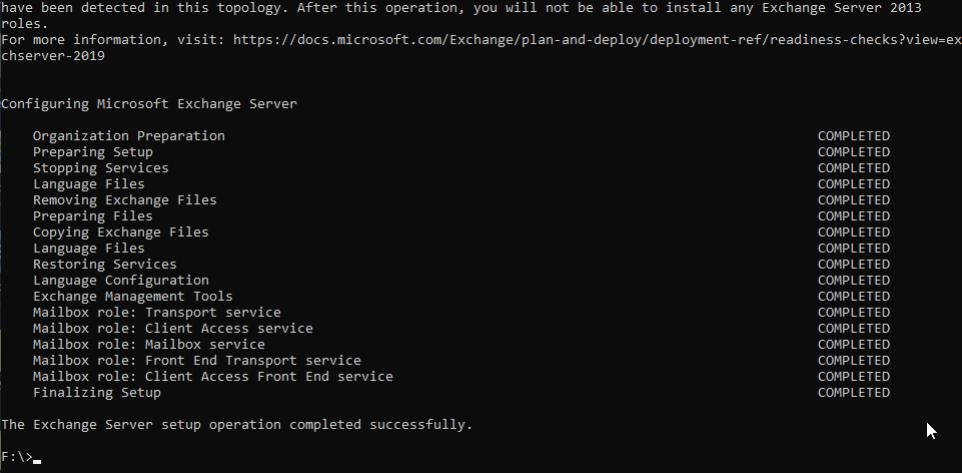
- Stopping Services - Can take some time to stop services
- Language Files - If it hangs here, it could be your Antivirus. Make sure all modules are stopped. You will see excessive CPU in the AV when this happens.
Security Update
Now that the update is completed, confirm everything is up and running and then reboot the server.
Next we need to install the latest SU, go back to the download page here and download the latest SU patch e.g. "Exchange Server 2019 CU12 Nov22SU" which is in side the CU12 branch.
Again, execute this using an elevated command prompt;

Run through the process and reboot once complete.

Note:
- You can manually stop the services inside exchange to speed up the process