
Enable Windows Time Service Logging
Created: 2020-11-04 00:45:56 | Last modified: 2022-03-13 00:27:16Access: Read | Views: 521 | Rating: N/A | Tags: windows windows server
Instructions for enabeling debug logging for the Windows Time Service
When getting a large number of event logs advising the system time has changed, there could be another application causing the constant time changes.
The system time has changed to 2020-11-04T00:39:46.911762400Z from 2020-11-04T00:39:45.774265500Z. Change Reason: An application or system component changed the time. Process: '\Device\HarddiskVolume2\Windows\System32\svchost.exe' (PID 1480).
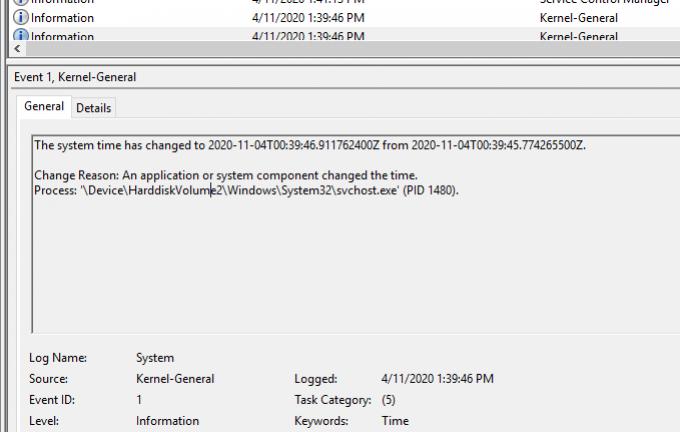
To diagnose this we need to enable Windows Time Service logging. This is done inside the registry.
Open regedit.msc (by clicking on the start menu and typing in regedit.msc)
Open the following key
HKEY_LOCAL_MACHINE\SYSTEM\CurrentControlSet\Services\W32Time\Config
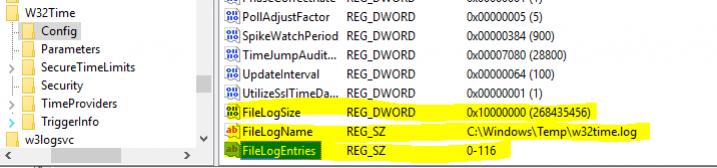
Create 3 new registry values
Right click => New => DWORD (32-bit) Value
Value name: FileLogSize
Value data: 10000000
Value name: FileLogName
Value data: C:\Windows\Temp\w32time.log
Value name: FileLogEntries
Value data: 0-116
Restart the Windows Time service, then you should now be able to see the log in C:\Windows\Temp\w32time.log