file.dll is either not designed to run on Windows or it contains an error
Created: 2024-02-08 08:58:53 | Last modified: 2024-02-08 22:08:54Access: Read | Views: 54 | Rating: N/A | Tags:
When getting an error like the following, in this example profapi.dll is either not designed to run on Windows or it contains an error. This could be related to corruption on your system.
When getting an error like the following, in this example profapi.dll is either not designed to run on Windows or it contains an error. This could be related to corruption on your system.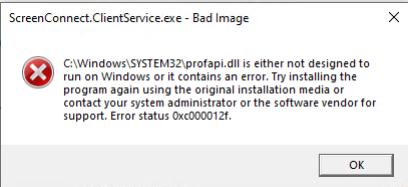
Open an elevated command prompt (Done by clicking the windows key, typing in cmd and right clicking and selecting 'Run As Administrator'). You will know you are elevated by seeing Administrator at the right hand side of the command prompt.
Scan the system by typing the following command
sfc /scannow
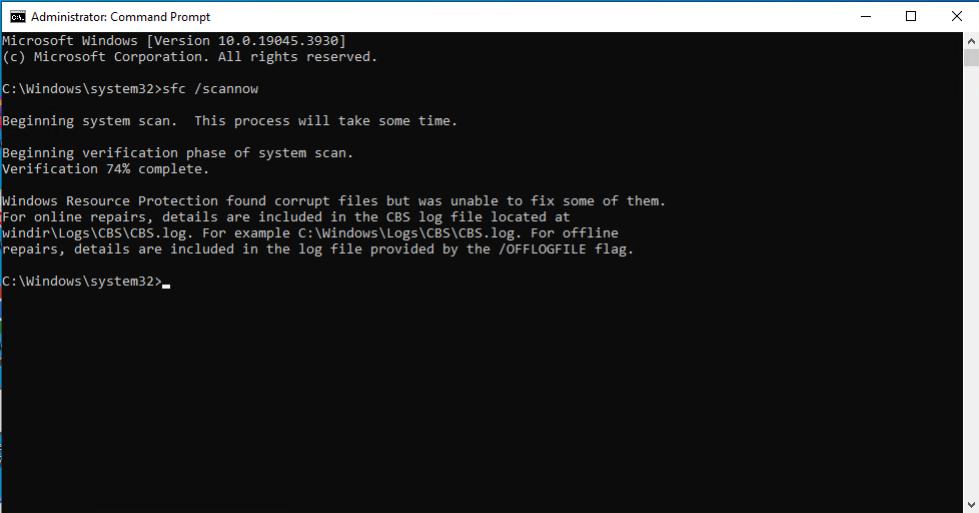
Usually you can just reboot the system and files will be fixed. If you get an error, try the following
Scan system health to make sure the system is reparable
dism /online /cleanup-image /scanhealth
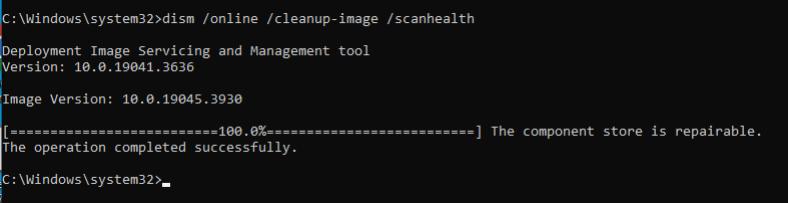
You can run the following command to check that the image is repairable
dism /online /cleanup-image /checkhealth
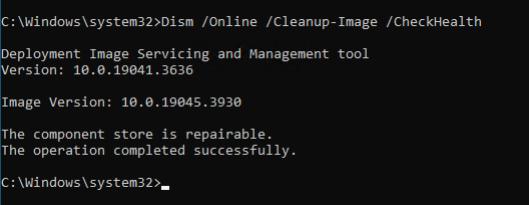
Now restore the health
dism /online /cleanup-image /restorehealth
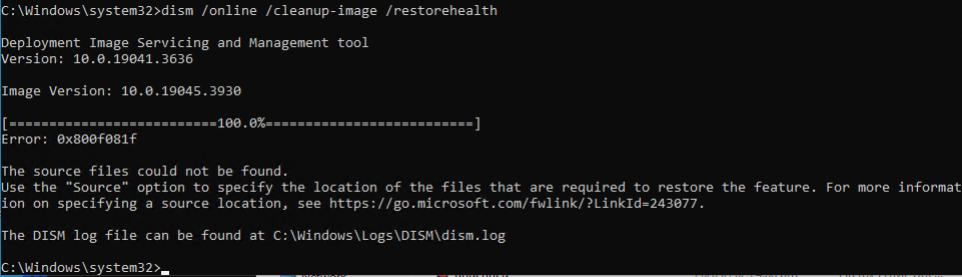
When restoring, DSIM will connect to windows update to download updated files. The window may freeze for a bit, but this is completely normal. In the background it is either downloading updates, writing to disk or processing information.
If there is an error regarding source, try the following commands. First cleanup the system
dism /online /cleanup-image /startcomponentcleanup
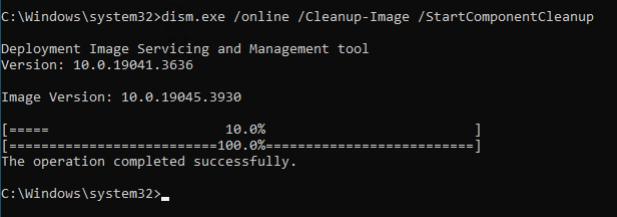
Run the restore health again
dism /online /cleanup-image /restorehealth
Still getting an error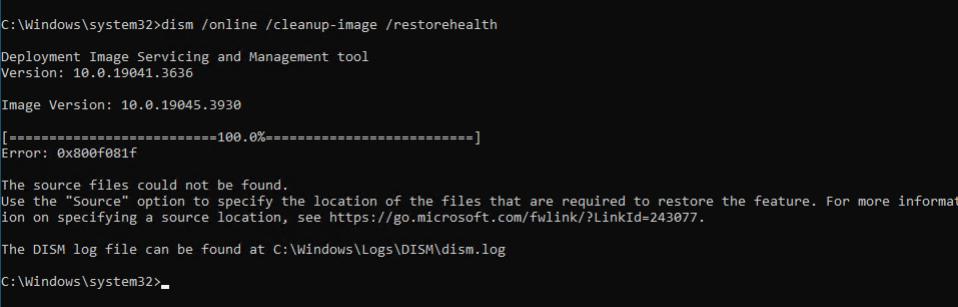
Using an ISO - If the above doesn't work
If the above doesn't work and we are still getting errors, and you have a Windows 10/11 ISO, you can mount the ISO directly to the system and try the restore that way.
Mount the drive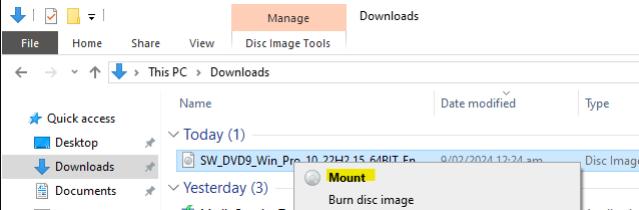
Get the drive to know where the image is mounted. In this example, it is mounted on D
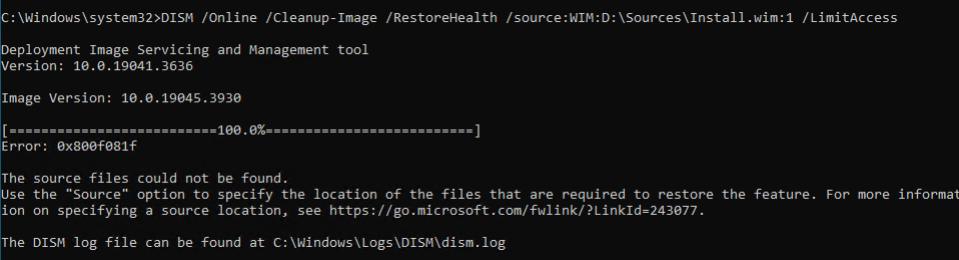
Run the restore using the mounted ISO (Changing the D to what drive the ISO is mounted on)
dism /online /cleanup-image /restorehealth /source:WIM:D:\Sources\Install.wim:1 /LimitAccess
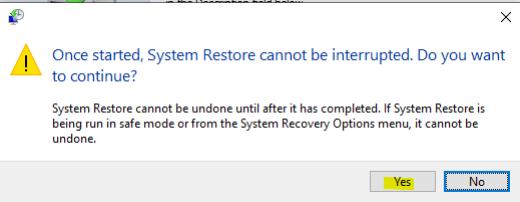
Still not working - Look into system restore
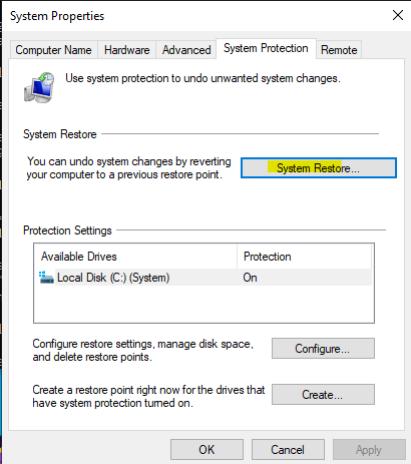
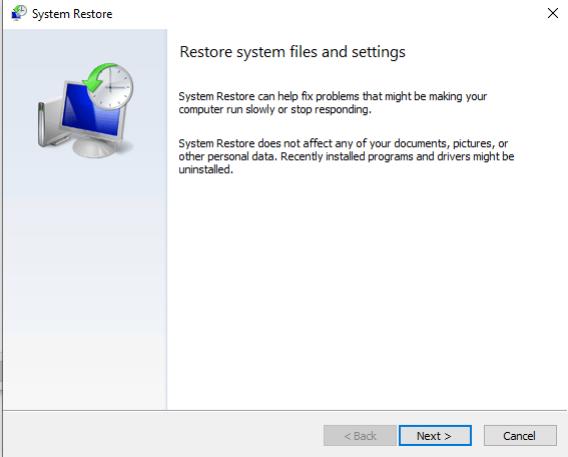
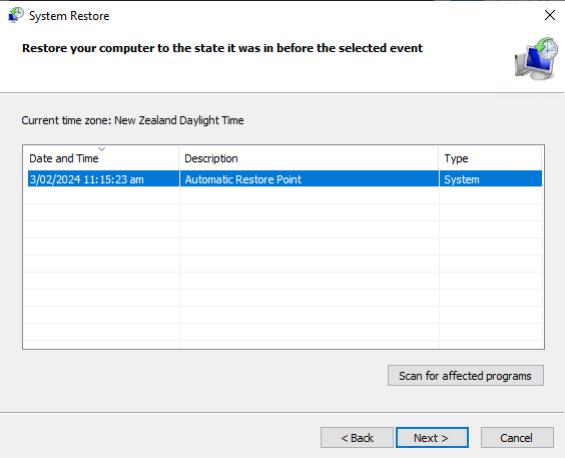
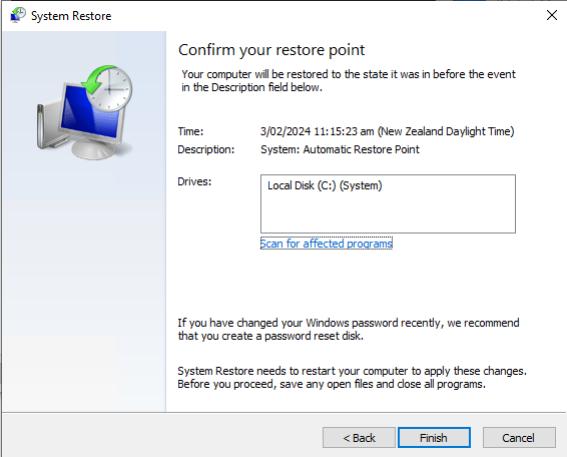
If we are still getting errors and the application is still not working. We can try and do a system restore (if the system has created one). You can get to here from the control panel or by clicking Windows + R, type in rstrui.exe